

 4.9
4.9 4.5
4.5LinkedIn’s Hiring Assistant now saves recruiters an average of 4 hours per role while requiring 62% fewer profile reviews to find qualified matches. This tutorial covers six steps, from building a Boolean search string to sending your first InMail, that compress a full LinkedIn employee search into about 25 minutes.
TL;DR: Build a Boolean search, apply Spotlight filters, let AI Recommended Matches surface overlooked candidates, then send personalized InMails. The sequence takes roughly 25 minutes and produces response rates 35% higher than manual-only sourcing.
Before You Start
You need one of three things: a LinkedIn Recruiter seat (full or Lite), a Sales Navigator license, or a free LinkedIn account with access to Google for X-Ray searching. Each tier unlocks different search depth, and picking the wrong one burns time before you’ve even typed a query.
| Feature | Free LinkedIn | Recruiter Lite | Full Recruiter | Sales Navigator |
|---|---|---|---|---|
| Boolean search | Basic (name, title, company) | Full keyword + Boolean | Full keyword + Boolean + AI | Full keyword + Boolean |
| Spotlight filters | No | Limited | Full | No |
| AI Recommended Matches | No | No | Yes | No |
| InMail credits/month | 0 | 30 | 150 | 50 |
| X-Ray via Google | Yes | Yes | Yes | Yes |
If you’re on a free account, skip straight to Step 5 (the X-Ray workaround) first, then return here when you upgrade.
Time required: 25-30 minutes for your first complete search. Subsequent searches take 10-15 minutes once you’ve saved your Boolean templates.
Knowledge level: You should be comfortable navigating LinkedIn’s interface. No coding or technical background needed.
Step 1: Build Your Boolean Search String
The goal is to construct a keyword query that returns candidates matching your role requirements without drowning you in irrelevant profiles. Get this wrong and every subsequent step boosts the noise.
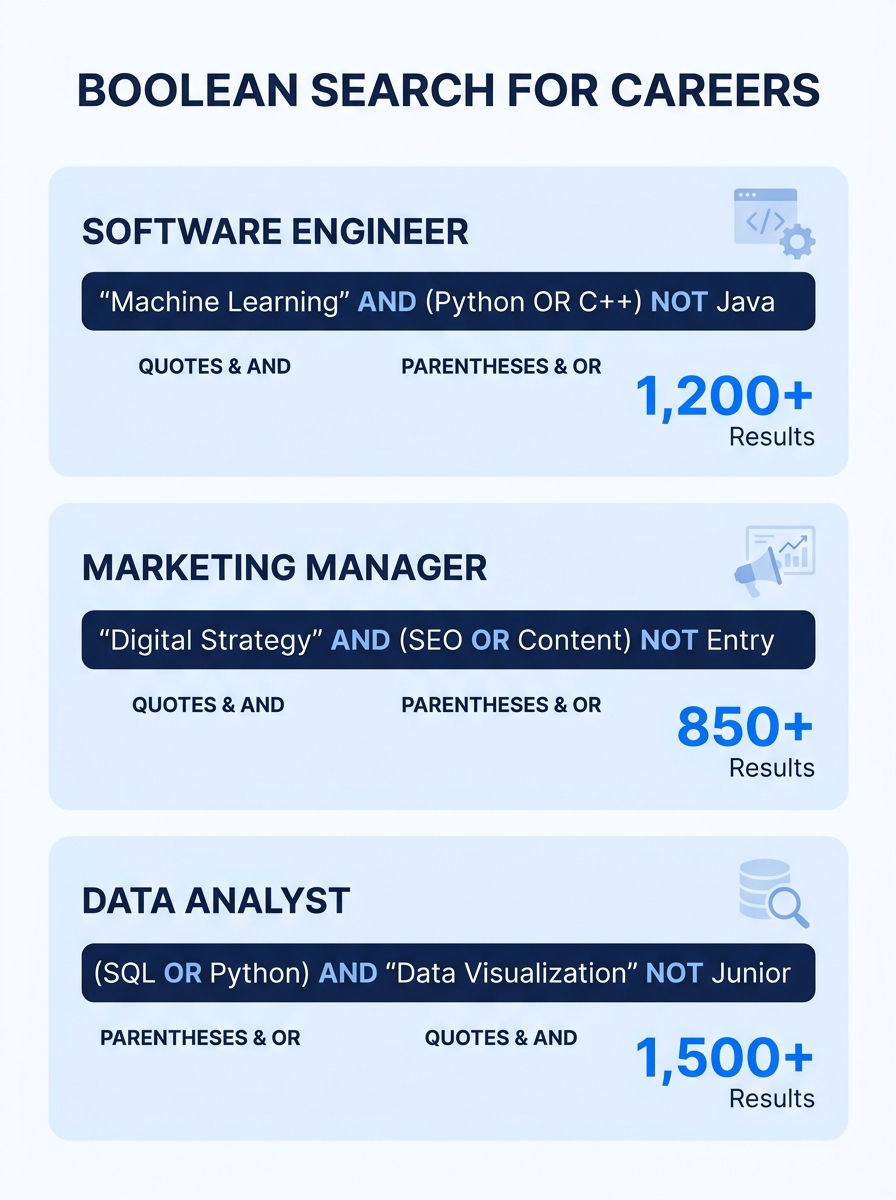
LinkedIn Recruiter supports five Boolean operators: AND, OR, NOT, quotation marks for exact phrases, and parentheses for grouping. The syntax works in the keyword field of any Recruiter search.
Action: Open LinkedIn Recruiter, click the search bar, and type a query following this pattern:
(“software engineer” OR “backend developer”) AND (Python OR Go) AND (“series B” OR “series C”) NOT (intern OR junior)
That query targets mid-level backend engineers who work at growth-stage companies, excluding interns and junior roles. Swap the terms inside each parenthetical group for your actual position.
Three rules prevent the most common mistakes:
- Quotation marks go around multi-word phrases. Without them, LinkedIn treats each word independently, and “product manager” becomes a search for anyone with “product” anywhere and “manager” anywhere, two entirely different problems.
- NOT must be capitalized. Lowercase “not” gets silently ignored, which means your exclusions do nothing and you never realize it.
- Parentheses group OR statements together. Without them, Boolean logic cascades unpredictably across your entire query.
Verification: Your search should return between 200 and 2,000 results. Fewer than 200 means your criteria are too narrow, remove one NOT clause or add an OR synonym. More than 5,000 means you need tighter filters. According to Leonar’s Boolean search guide, the sweet spot for manageable candidate review sits between 300 and 1,500 profiles.
Step 2, Layer Spotlight Filters to Find Responsive Candidates
Spotlight filters separate candidates who are likely to respond from those who’ll ignore your message. This single step cuts wasted InMails dramatically and is the feature most new Recruiter users overlook entirely.
After running your Boolean search, look for the Spotlights panel on the left sidebar in LinkedIn Recruiter. You’ll see categories like “Open to Work,” “More Likely to Respond,” “Past Applicants,” and “LinkedIn Connections.” According to LinkedIn’s Recruiter documentation, Spotlights prioritize candidates based on their activity signals, expressed interest, and existing connections to your organization.
Action: Check “Open to Work” first. Then layer “More Likely to Respond” on top. This combination filters your Boolean results down to candidates showing active job-search behavior.
The gap in response rates is substantial. Personalized connection requests sent to Spotlight-flagged candidates see 45-50% acceptance rates, compared to 15-20% for generic requests sent blind. That 30-percentage-point difference means the filtering step alone can triple your effective outreach.
Verification: Your result count should drop by 60-80% from the unfiltered Boolean search. If it barely changes, your Boolean query is already quite narrow, and most of those candidates happen to be active. If it drops to near zero, broaden your Boolean terms from Step 1.
Step 3, Let AI Surface Candidates You’d Miss
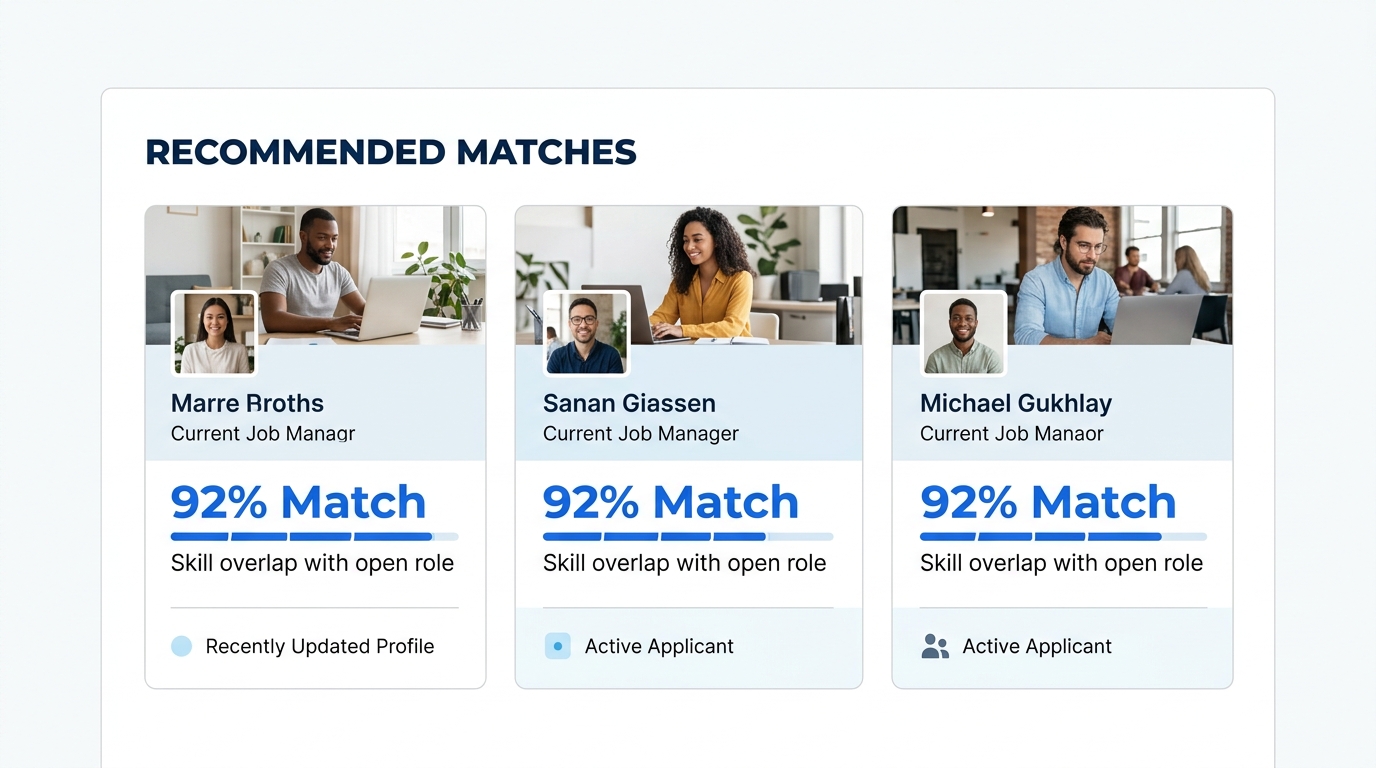
LinkedIn’s AI-assisted search analyzes your search criteria and job description, then suggests “look-alike” candidates you wouldn’t have found through keyword matching alone. Candidates surfaced through Recommended Matches are 35% more likely to respond to InMails than candidates found through manual filtering.
Action: After running your Boolean + Spotlight search, scroll to the “Recommended Matches” tab in LinkedIn Recruiter (full version only). Review the top 20 profiles the AI suggests. The system considers skills adjacencies, career trajectories, and company-type patterns that Boolean strings can’t capture.
Your Boolean search for “data scientist” AND Python might miss a “machine learning engineer” at a competitor whose profile emphasizes TensorFlow rather than Python, but whose actual daily work overlaps 90% with your open role. Recommended Matches catches exactly these candidates.
The AI-assisted search also boosts InMail acceptance rates by 18% compared to manual-only searches, because it identifies candidates whose activity patterns signal openness to outreach. Recruiters using the full Hiring Assistant review 62% fewer profiles overall because the initial match quality is higher.
Verification: At least 3-5 of the Recommended Matches should be candidates you hadn’t considered, different job titles, unexpected companies, adjacent skill sets. If all recommendations look identical to your Boolean results, your Boolean string is probably too broad, and the AI doesn’t have enough constraints to find interesting outliers. Tighten your original search terms and check again.
Step 4, Write InMails That Actually Get Opened
AI-assisted InMail messages achieve a 44% higher acceptance rate and get accepted 11% faster than non-AI messages, according to LinkedIn’s platform data. Personalized InMails perform about 15% better than bulk-template messages. Generic outreach wastes credits and damages your response rate metrics, which affects future InMail deliverability.
Action: For each candidate you want to contact, write a 3-4 sentence InMail following this structure:
- Opening line, reference something specific from their profile (a project, a company transition, a skill endorsement). This proves you actually read their background.
- Bridge sentence, connect that specific detail to your open role. “Your experience building real-time data pipelines at [Company] maps directly to what we’re building at [Your Company].”
- Value statement, name one concrete thing the candidate would gain (salary range, technical challenge, team size, remote flexibility). Don’t be vague.
- Soft close, ask a low-commitment question. “Would a 15-minute call this week make sense?” works better than “Are you interested in this opportunity?”
Tip: Timing matters. LinkedIn’s data shows InMails sent on Tuesdays, Wednesdays, and Thursdays between 10 AM and noon (candidate’s local time) get the highest open rates. Avoid Monday mornings and Friday afternoons.
Verification: Track your InMail acceptance rate over your first 10 messages. Below 20% means your messages are probably too generic, go back and add more profile-specific details to each opening line. Above 35%, you’ve found the right formula.
As one recruiter on r/recruiting noted, focusing on company names, titles, and universities matters more than chasing random skill keywords, because candidates keep their profiles updated around those identity anchors. This connects to a broader shift: with 77% of resumes now appearing AI-generated, recruiters are placing more weight on LinkedIn profiles and direct conversations than on resume content alone.
Personalized InMails see 45-50% acceptance rates. Generic requests land at 15-20%. The opening sentence, specifically whether it references the candidate’s actual profile, accounts for most of that gap.
Step 5, The X-Ray Workaround for Free Accounts
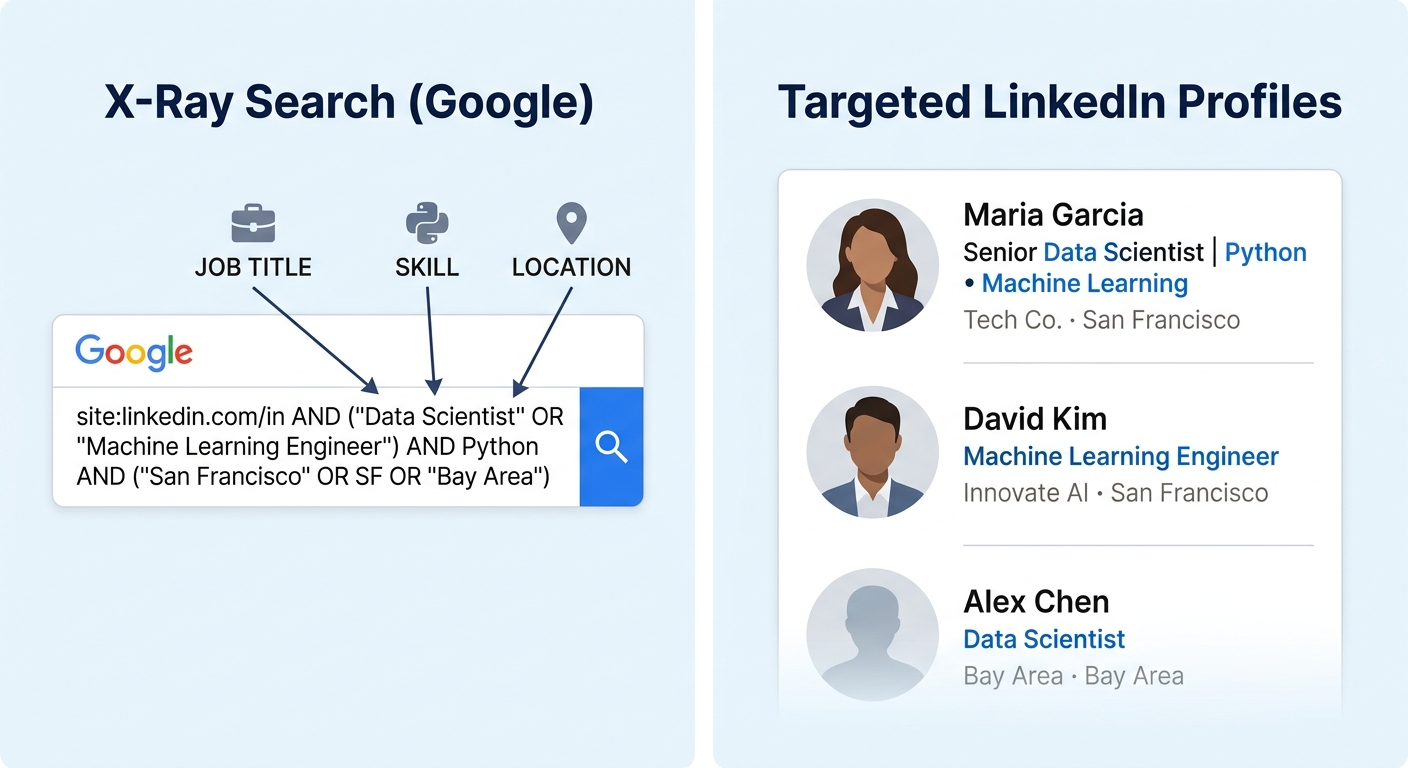
Google’s X-Ray search gives you access to public LinkedIn profiles without hitting LinkedIn’s commercial search limits. This technique is free and works immediately, no Recruiter license required.
Action: Open Google and type this search string:
Site:linkedin.com/in “data scientist” “Python” “San Francisco”
Replace the quoted terms with your target job title, key skill, and location. Google indexes public LinkedIn profiles, and this query restricts results to LinkedIn’s /in/ profile pages only.
Three refinements that tighten results:
- Add a company name in quotes to target specific employers: “data scientist” “Python” “Stripe”
- Add -recruiter to exclude recruiter profiles from results
- Add “currently” or “present” to bias toward people still in their listed role
LinkedIn data shows it takes less than 5 minutes, on average, to find and engage a qualified candidate when using the platform’s paid tools. X-Ray is slower, budget 10-15 minutes per search, but it costs nothing, and you can reach candidates who’ve set their profiles to public visibility without burning InMail credits.
Verification: Your Google results should show individual LinkedIn profile URLs (linkedin.com/in/firstname-lastname). If you’re seeing LinkedIn job postings, company pages, or articles instead, check that “site:linkedin.com/in” appears in your query with no space between “site:” and the URL.
When Searches Return Bad Results
Three things commonly go wrong. Identifying which one you’re hitting saves hours of frustration.
Problem 1: Too many irrelevant profiles. The cause is almost always missing quotation marks around multi-word phrases, or missing NOT exclusions. Go back to Step 1 and verify that every multi-word term sits inside quotes. Add NOT clauses for common false positives, a search for “engineer” without NOT “support engineer” will flood your results with technical support staff who don’t match your backend engineering role.
Problem 2: Candidates don’t respond to InMails. If your acceptance rate is below 15%, check two things. First, look at your own LinkedIn profile. Candidates check your background before replying, and an incomplete recruiter profile tanks trust immediately. Evaboot’s Recruiter tutorial identifies optimizing your own profile as the single highest-use recruiter practice. Complete profiles are 40x more likely to receive engagement opportunities, and the same principle applies in reverse, your completeness signals your legitimacy. Second, review your InMail opening lines. If the first sentence could apply to any candidate without editing, it’s too generic.
Problem 3: Your candidate pool is too small. This happens when you over-filter. Remove degree requirements first, 26% of paid LinkedIn job posts in 2024 dropped degree requirements, reflecting the broader shift toward skills-based hiring. Then broaden your Boolean OR groups by adding adjacent job titles, related technologies, or neighboring cities. AI Recommended Matches also helps here by surfacing candidates with transferable skills from unexpected backgrounds.
If you’re thinking about how AI screening tools shape what candidates actually see, keep in mind that filtering works in both directions. Overly rigid Boolean criteria create the same kind of artificial narrowing that algorithmic bias produces in ATS systems. And when you do connect with a strong candidate, they’ll often need to prepare materials quickly, having polished cover letter examples ready to share can speed up a mutual evaluation process.
Where to Go From Here
Once you’ve completed your first LinkedIn employee search using the full five-step sequence, three paths deepen your results over time.
Save your Boolean strings. LinkedIn Recruiter lets you store search queries as projects. Build a library of Boolean templates for each role family you recruit regularly, and update them quarterly as job titles and skill terminology drift. A “data engineer” search from 2024 probably needs different skill keywords today.
Set up search alerts. Recruiter notifies you when new candidates match your saved criteria. This turns a one-time search into a passive pipeline that surfaces people as they update their profiles or toggle their “Open to Work” status.
Track your outreach cadence against actual data. Monitor InMail acceptance rates weekly. Employees sourced through LinkedIn are 40% less likely to leave within the first 6 months compared to other channels, so the time you invest in quality outreach pays compound returns in retention. Prioritize candidates with complete, recently-updated profiles, they’re both more responsive and more likely to be actively evaluating opportunities.
Six people get hired through LinkedIn every minute. The platform’s AI tools have compressed what used to be days of manual sourcing into a structured, repeatable workflow. The five steps above give you the skeleton. The real skill is refining your Boolean logic and personalizing your outreach until your acceptance rates consistently clear 35%, and then teaching the rest of your hiring team to do the same.