

 4.9
4.9 4.5
4.5LinkedIn’s careers search gives you keyword filters, Boolean operators, job alerts, and AI-driven recommendations from a single search bar. This tutorial walks you through setting up your profile for search visibility, running targeted queries, and building automated alerts, all in under 60 minutes of focused work.
TL;DR: Optimize your headline and skills first (they drive how LinkedIn ranks you in results), then use Boolean operators and advanced filters to narrow thousands of listings to a focused handful. Save your searches, set daily alerts, and apply within the first week of posting for the best response rates.
Before You Start
You need four things before touching the search bar:
- A LinkedIn account. Free works fine. Premium adds a few extra filters, but every technique in this tutorial works without it.
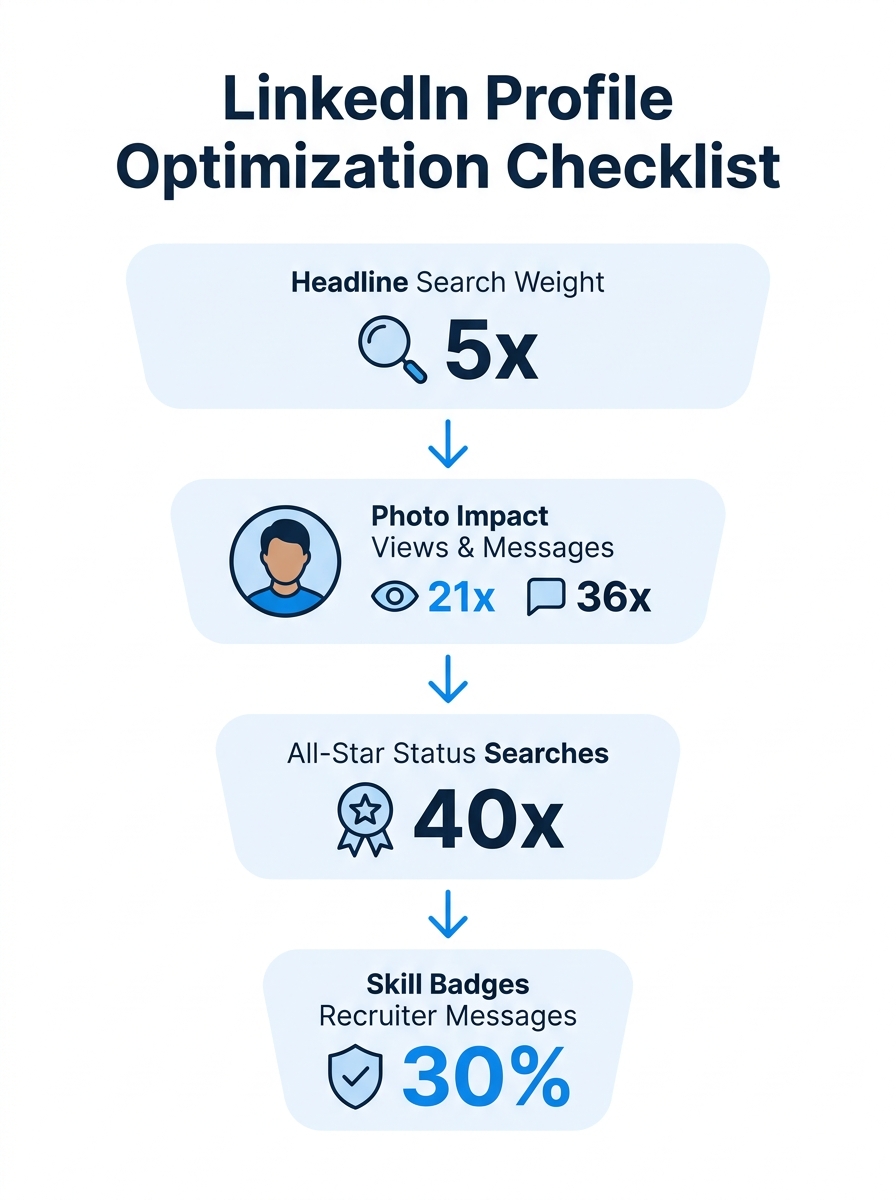
- A profile photo. Profiles with professional photos receive 21x more views and 36x more messages, according to LinkedIn’s own platform data. Skipping this step tanks your visibility before you’ve even searched.
- Your target job title and 2-3 geographic preferences. Write these down, you’ll use them in your headline, search queries, and alert settings.
- 45-60 minutes of uninterrupted time. Steps 1 through 6 build on each other. Doing them in one sitting produces a working search system by the end.
Desktop or mobile both work. LinkedIn’s help center states that to “view your saved jobs and manage your job search most effectively,” they recommend downloading the LinkedIn mobile app or accessing via desktop.
Step 1, Update Your Headline and Skills Before Searching
LinkedIn’s search algorithm weighs your headline at 5x the importance of any other profile field. Before you run a single query, rewrite your headline to contain the job title and core skills you’re targeting. You’ll know this step worked when your headline reads like a search query a recruiter would type, something like “Senior Marketing Manager | B2B SaaS | Demand Generation” rather than a vague tagline about being passionate.
This matters for your LinkedIn careers search because the platform serves personalized job recommendations based on your profile content, past experience, and activity. If your headline says “Motivated Team Player” instead of “Data Analyst | SQL | Python | Tableau,” the algorithm feeds you irrelevant listings from the start.
Add at least 5 relevant skills to your Skills section. According to a report from That’s Good HR, nearly 50% of hiring managers use LinkedIn skills data to fill roles. And completing your profile to All-Star status, which requires a photo, headline, summary, experience, skills, and education, makes you appear in 40x more searches than incomplete profiles.
Tip: Take LinkedIn’s skill assessments for your top 3 skills. Verified skill badges increase recruiter messages by up to 30%, and they signal to the matching algorithm that your profile is strong for roles requiring those competencies.
If you’re building your resume alongside your LinkedIn profile, our guide on LinkedIn job hunting strategy covers how to align both documents so they reinforce each other instead of contradicting.
Running Your First Search on the Jobs Tab
Click the briefcase icon labeled “Jobs” in LinkedIn’s top navigation bar. You’ll land on the Jobs homepage, which displays two things: personalized job picks based on your profile, and a search bar where you can type keywords. LinkedIn Learning’s job search tutorial describes the homepage layout: “At the top, I can see job picks for you. These are personalized job recommendations based on your profile, past experience and activity on LinkedIn.”
LinkedIn’s search now supports natural language queries alongside traditional keyword matching. You can type a standard query like “product manager fintech” or describe what you want in everyday English. LinkedIn’s best practices help page gives specific examples: you can write “I want to use my marketing skills to help cure cancer” or “senior designer for fintech in California,” and the platform parses your intent to return relevant postings.
For more precision, use the keyword search bar to look for job posts containing specific terms in their titles or descriptions, as LinkedIn’s advanced search documentation confirms. Type your target job title, company name, or a specialized skill, then hit enter.
Verification: You should see a results page with job listings, filter options on the left sidebar (or top toolbar on mobile), and a total result count. If you see zero results, broaden your keywords, try “marketing” instead of “senior lifecycle marketing manager.”
Filtering Results Down to What Actually Fits
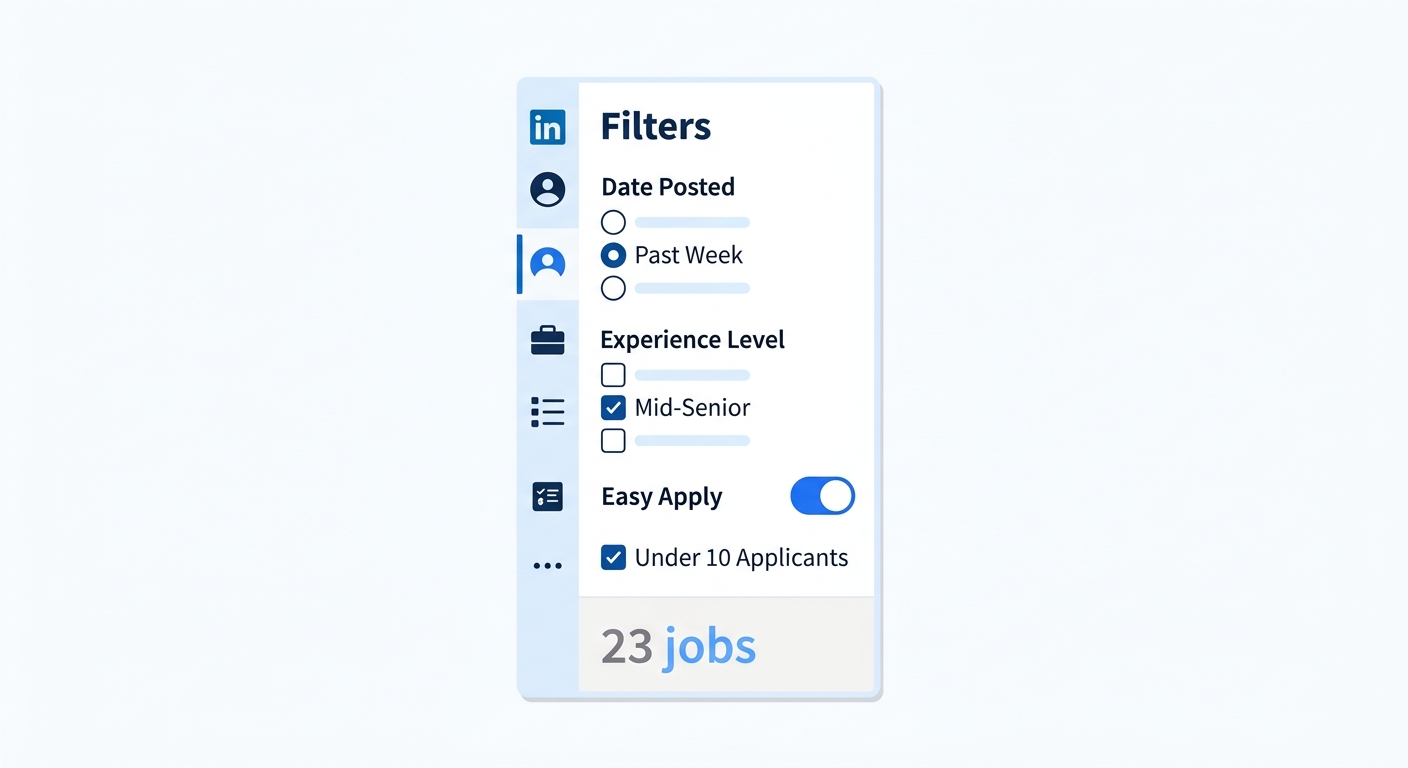
Raw LinkedIn careers search results often return thousands of listings. Filters are what make the difference between browsing aimlessly and finding 15 strong matches in 10 minutes. After your initial query, apply advanced filters for location, experience level, company, date posted, and applicant count.
The 5 filters that matter most:
- Date Posted: Set to “Past Week” or “Past 24 Hours.” Applying within the first week of a job posting correlates with the highest response rates, after 7-10 days, hiring managers are already screening their initial pool.
- Experience Level: Choose from Entry, Associate, Mid-Senior, Director, or Executive. This single filter eliminates 60-80% of irrelevant results for most searches.
- Easy Apply: Toggle this on for roles where you can submit directly through LinkedIn. Tap “Easy Apply” at the top of any qualifying job post and follow the 3-4 prompts to apply in under 2 minutes.
- Under 10 Applicants: This surfaces fresh postings with low competition. These are your highest-probability targets.
- In Your Network: Filter for jobs at companies where you have 1st or 2nd-degree connections. A warm introduction dramatically changes your odds of getting a response.
LinkedIn’s filter documentation reveals an extra technique most people miss: you can search for job-related posts by clicking the Jobs dropdown at the top of the page, selecting Posts, then choosing “Job posts” under the Content type filter. This surfaces informal job announcements, the kind managers post on their personal feeds, that never appear in the main jobs feed.
Boolean Operators That Change Everything
Boolean search is the feature that separates casual LinkedIn browsers from people who actually find relevant roles quickly. Boolean operators, AND, OR, NOT, quotation marks, and parentheses, let you build precise queries that the standard search bar can’t replicate on its own.
Here’s how each operator works:
- AND requires both terms to appear. “Product manager AND fintech” returns only listings mentioning both.
- OR broadens your search across synonyms. “UX designer OR UI designer OR product designer” catches 3 title variations in 1 query.
- NOT excludes terms. “Marketing manager NOT intern NOT entry” strips junior roles from your results.
- Quotation marks lock in exact phrases. “Vice President of Engineering” returns that specific title rather than splitting the 4 words across unrelated listings.
- Parentheses group terms for complex logic. “(Marketing OR Growth) AND Manager NOT Director” layers multiple conditions into a single search string.
One Reddit user in r/linkedin offered blunt advice on the topic: “It’s a sh*tty platform for looking at specific jobs, but try doing what’s called a Boolean search.” The phrasing is rough, but the recommendation is accurate. A 2026 analysis confirmed that pairing Boolean operators with LinkedIn’s built-in filters reveals targeted postings that standard keyword searches miss, including roles with under 10 applicants and Easy Apply features.
Boolean queries paired with filters reveal targeted postings that standard keyword searches miss entirely, including low-competition roles most candidates never see.
Verification: Run the same search with and without Boolean operators. The Boolean version should return 40-70% fewer results, and the top 10 listings should be noticeably closer to your target role.
Saving Searches and Automating Alerts
Running the same search every morning wastes time you could spend tailoring applications. After you’ve built a filtered, Boolean-refined query, save it. Click the “Set alert” toggle on your search results page. LinkedIn emails you daily or weekly when new postings match your saved criteria.
You can maintain multiple saved searches simultaneously, one for your ideal role, one for a backup title, one focused on a specific company or geography. Each alert runs independently, so you can set daily frequency for your primary search and weekly for exploratory ones.
Choose daily alerts for active job searches. The goal is to see new postings within 24-48 hours of publication. Speed matters because early applicants consistently get more attention from hiring managers. And your overall activity level factors into how prominently LinkedIn surfaces opportunities to you: users who post on the platform weekly receive 4x more profile views and appear in 7x more recruiter searches than passive users.
Verification: Within 24 hours of setting your first alert, you should receive an email or LinkedIn notification with matching listings. If nothing arrives, check Settings > Communications > Email and confirm that job alert notifications are enabled.
The “Open to Work” Toggle and Who Sees It
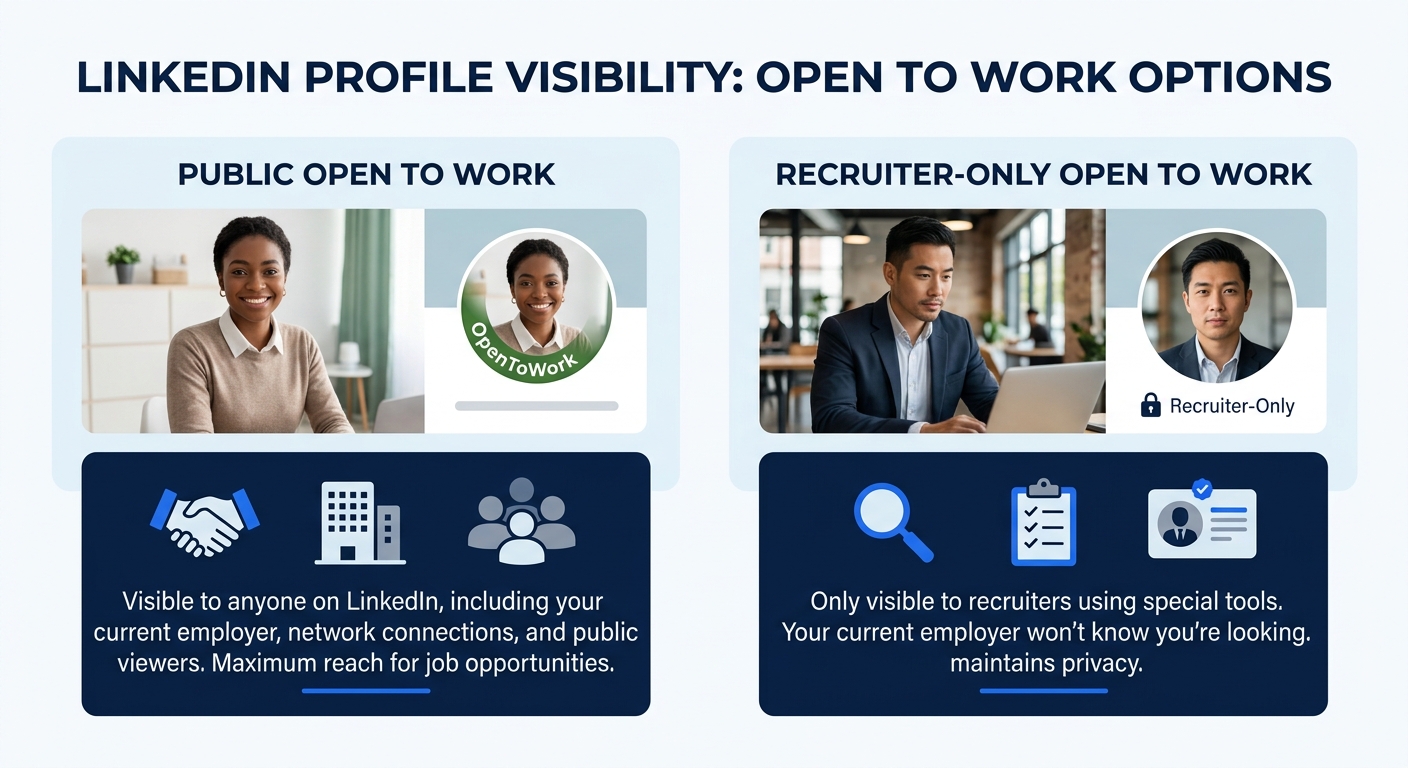
LinkedIn’s “Open to Work” setting tells recruiters you’re available for new roles. You get 2 visibility options: visible to all LinkedIn members (the green #OpenToWork banner on your photo) or visible only to recruiters. The recruiter-only option keeps your search private from your current employer, LinkedIn blocks recruiters at your own company from seeing the signal, though no filtering system is perfectly airtight.
To enable it: go to your profile, click the “Open to” button below your headline, select “Finding a new job,” add your target titles (up to 5), preferred locations, and your availability timeline, then choose your visibility preference.
This setting feeds directly into LinkedIn’s AI-powered recommendation engine. Once enabled, expect more relevant suggestions in your Jobs tab and email digests, because the algorithm now factors your stated preferences alongside your profile data and search history. If you want a deeper walkthrough of using LinkedIn’s full toolkit for a job search, we covered strategy for job seekers on LinkedIn in a separate guide.
Common Problems and How to Fix Them
Too many irrelevant results: Your keywords are too broad. Add Boolean NOT operators to exclude terms that consistently appear in wrong-fit listings. If you search “designer” and get interior design roles, try “UX designer NOT interior NOT graphic NOT floral.”
Zero results with filters active: You’ve stacked too many constraints. Remove filters one at a time, starting with the most restrictive, usually “Under 10 Applicants” or a specific company name, until results reappear. Then add filters back selectively.
Job alerts sending irrelevant matches: Your saved search query is the problem. Delete the alert, rebuild the search with Boolean operators and tighter filters, then re-save. Alerts inherit whatever query produced them, so fixing the underlying query fixes the alert output.
“Easy Apply” button missing on a listing: The employer chose to route applications through their own careers site. Click “Apply” instead and you’ll be redirected to the company’s applicant tracking system. Make sure your resume is keyword-optimized for ATS parsing before submitting, our guides at ResumeWriting.net cover formatting, keyword strategy, and common ATS pitfalls.
Profile not appearing in recruiter searches at all: An incomplete profile tanks your search visibility. All-Star profiles appear in 40x more searches than bare-bones ones. Fill every section, upload a photo, list 5+ skills with assessments where possible, and write a summary that includes keywords from your target job descriptions.
Where the Search Fits Into a Broader Strategy
Your LinkedIn careers search infrastructure is now set: an optimized headline weighted for the algorithm, a set of saved Boolean queries with daily alerts, and the “Open to Work” signal turned on for recruiters. The ongoing work is responding to alerts within 48 hours, refining your Boolean strings as you learn which keywords produce the strongest matches, and staying active on the platform, because LinkedIn’s recommendation engine rewards engagement with better job suggestions over time.
The search tools handle discovery. But discovery is one piece of a larger system that includes your resume, your cover letters, and the skills you’re building between roles. If you’re thinking about which capabilities to develop next, the research on lifelong learning and digital fluency as the job market shifts pairs well with what you’ve built here. Search finds the opportunities. Everything else determines whether you’re ready when the right one appears.