
 4.9
4.9 4.5
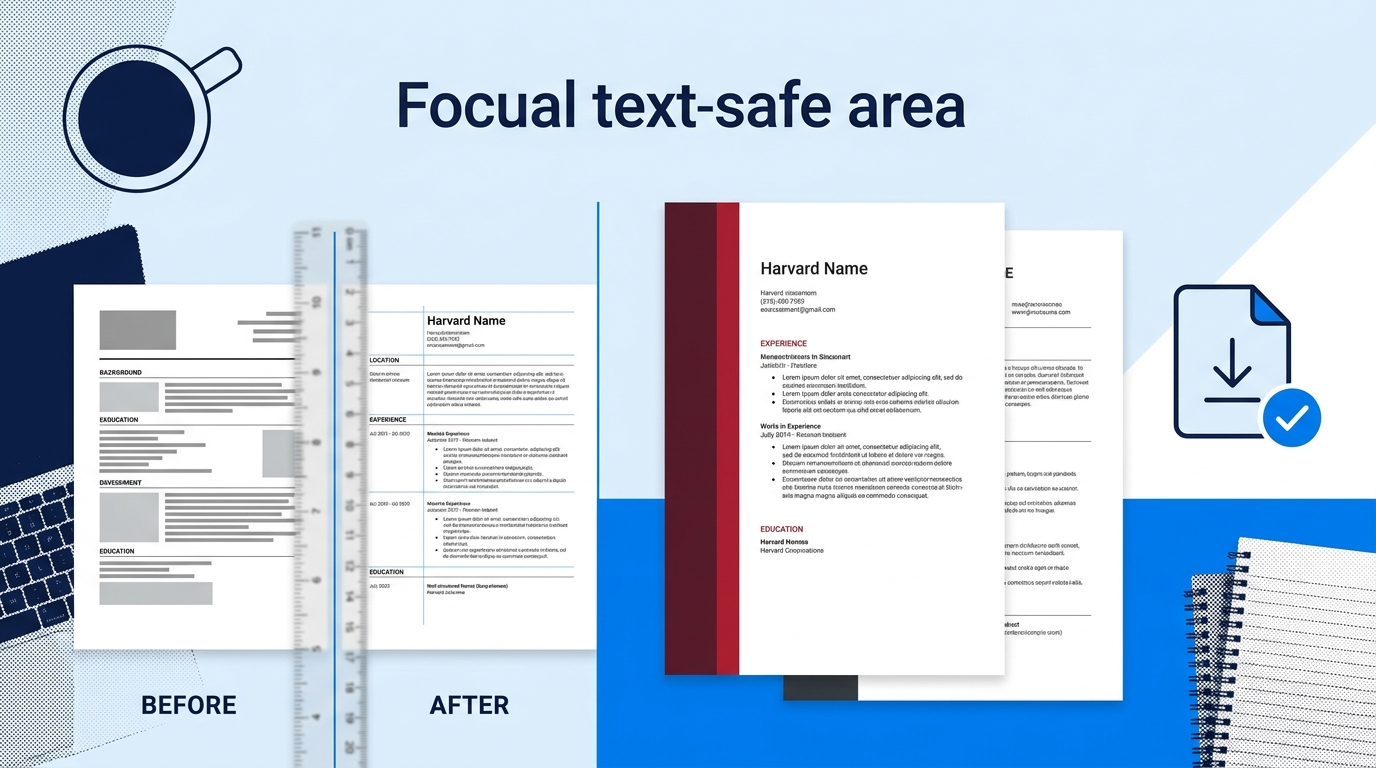
4.5Harvard’s Mignone Center for Career Success publishes a free resume template in .docx and Google Docs formats built on a single-column, graphics-free layout with a 96% ATS parse success rate. This walkthrough gets you from blank template to finished resume in roughly 45 minutes.
TL;DR: Download the official Harvard bullet-point resume template as a .docx (not the PDF), fill sections in order, header, education, experience, skills, using the Action + Context + Result bullet formula, and submit as .docx to avoid the 31% parse failure rate that hits multi-column or table-based layouts.
Before You Start
You need three things before opening the template: a computer with Microsoft Word or access to Google Docs, the job posting you’re targeting (printed or open in a browser tab), and a rough list of your last three to five positions with dates.
The Harvard resume template comes in three versions: a Word .docx, an accessible Word .docx, and a Google Docs version. All three are free at Harvard’s bullet-point resume template page. Pick whichever matches your workflow. If you don’t have Word, the Google Docs version works identically.
Time commitment: About 45 minutes for your first resume using this template. Subsequent versions for different job applications take 15–20 minutes once the base document exists.
Experience level: The template works for students, recent graduates, and mid-career professionals. Harvard Business School’s alumni career resources recommend the same structural approach for experienced hires, with one key difference: professionals with 15+ years of experience can extend to two pages.
Step 1: Download the Correct File
Go to the Harvard FAS career services site and download the bullet-point resume template in .docx format. Don’t download the PDF version. It’s fine for viewing the layout, but PDF formatting breaks when you try to edit it, and many applicant tracking systems reject or garble PDF submissions entirely.
The single-column .docx structure has a 4% ATS parse failure rate. Table-based or multi-column layouts fail at 31%. That gap alone justifies using the Harvard format even if you prefer fancier designs.
You’ll know this step worked when you open the file and see placeholder text organized into clear sections: a header with contact info, Education, Experience, and Additional/Skills.
Warning: If you’re using Google Docs, click “File → Make a copy” before editing. Editing the shared original will prompt a permissions error, and you’ll lose any work you’ve typed.
Step 2: Fill In Your Header
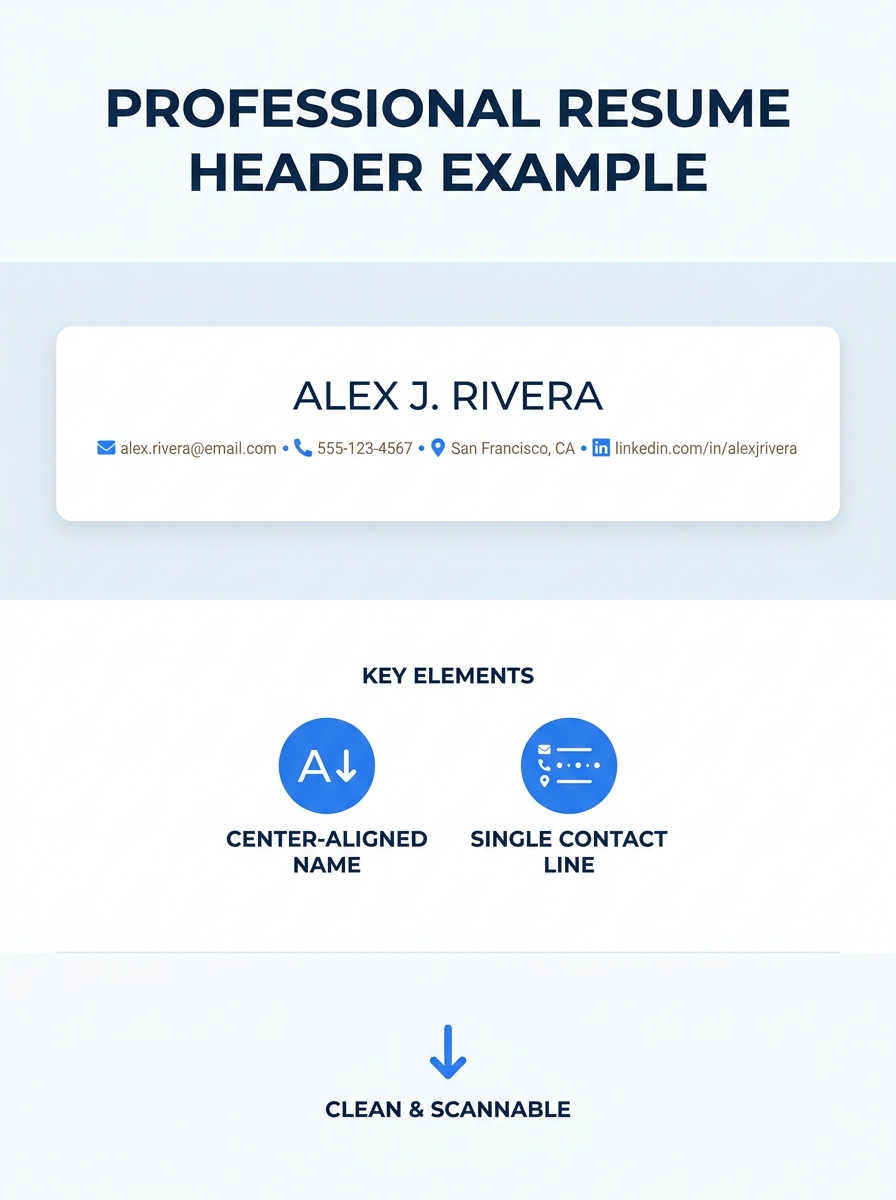
Replace the placeholder name, address, email, and phone number at the top of the document. The Harvard template uses a simple format: your name centered in a slightly larger font (14pt is standard), with contact details on the line below.
The template’s default header layout looks like this: Your Name, then Street Address • City, State ZIP • [email protected] • phone number. Keep the bullet separators (•) between each piece of contact info. They’re clean and universally readable.
Two things to add that aren’t in the template’s placeholder: your LinkedIn profile URL (customized, not the default string of numbers) and a portfolio link if your field requires one. If you’re still building out your LinkedIn presence, our guide on optimizing LinkedIn for job seekers covers the essentials.
You’ll know it worked when your header fits on two lines maximum and includes at least your name, email, phone, and LinkedIn URL.
Step 3: Build Your Education Section
For students and anyone within about five years of their last degree, Education goes first. For everyone else, skip ahead to Step 4 and put Experience first. You can circle back and place Education below it.
The Harvard resume template structures education entries like this:
- University name and location on the left, graduation date right-aligned
- Degree type and concentration/major on the next line
- GPA listed only if it’s 3.5 or higher (Harvard’s guidance is explicit on this cutoff)
- Relevant coursework, honors, thesis title, and study abroad as optional sub-items
Don’t list every course you took. Harvard Business School’s alumni guidelines say to skip course lists entirely and instead highlight leadership roles and study abroad experiences. The general undergraduate template is slightly more flexible: list 3–5 courses only if they’re directly relevant to the job you’re targeting.
You’ll know this step worked when your education entry takes up 3–6 lines and leads with your strongest credential.
Step 4: Write Experience Bullets with Harvard’s Formula
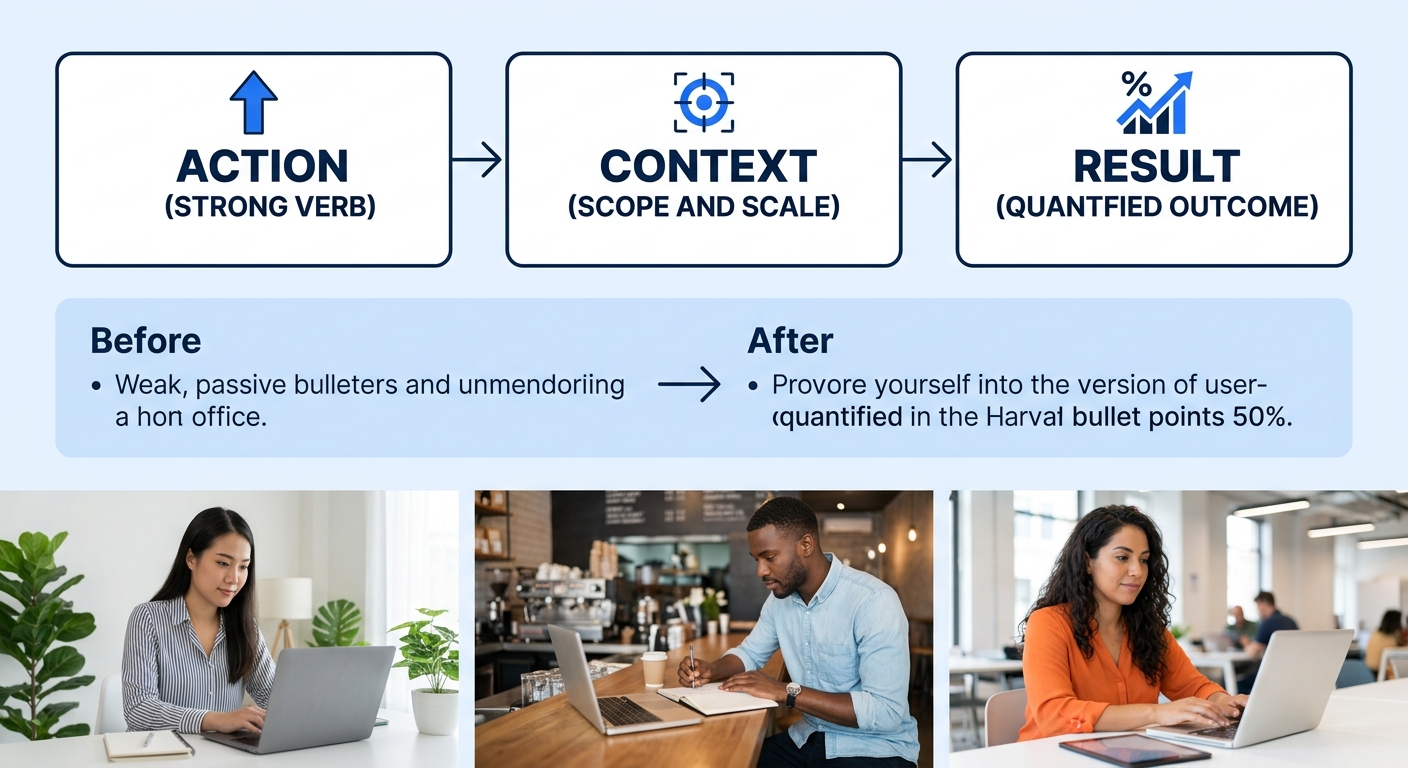
This is where most people spend the bulk of their 45 minutes, and where the Harvard resume template’s structure earns its reputation. The template uses a specific bullet point format, and the underlying principle is Action + Context + Result.
Start with your most recent role and work backward in descending chronology. For each position, include:
- Company name and location on the left, dates right-aligned
- Job title on the next line
- A one-to-two sentence scope description explaining what you were responsible for
- Two to four bullet points underneath, each following the formula
Here’s how the formula works in practice. Instead of writing “Responsible for managing social media accounts,” you’d write: “Managed three social media accounts (Instagram, LinkedIn, Twitter), growing combined follower count by 34% over six months.” The action verb opens the sentence, the context explains scale or scope, and the result gives a measurable outcome.
Data-driven resumes with quantified achievements are 40% more likely to pass initial screening compared to resumes with generic responsibility descriptions. If you don’t have exact numbers, use reasonable estimates. “Approximately 200 customers per shift” is better than “many customers.”
The action verb opens the sentence, the context explains scale or scope, and the result gives a measurable outcome.
Harvard’s career services team publishes a list of strong action verbs organized by skill type. Use words like “designed,” “analyzed,” “coordinated,” “negotiated,” “reduced,” or “launched” rather than passive constructions like “was responsible for” or “helped with.”
You’ll know this step worked when every bullet starts with a past-tense action verb (present tense for your current role) and at least half your bullets include a number.
Step 5: Add Skills, Activities, and Interests
The bottom section of the Harvard template catches everything that doesn’t fit neatly into Education or Experience. Here’s how to fill each part:
Technical Skills: List software, programming languages, certifications, or tools that match keywords from the job description. If you’re applying for a role that mentions Excel, Python, or Salesforce, those words need to appear here verbatim. ATS systems search for exact keyword matches, and the skills section is where most of them live. If you want to see how a resume builder like Teal handles keyword matching automatically, it’s worth comparing against this manual approach.
Languages: List each language with an explicit proficiency level: Native, Full Professional, Professional Working, or Limited Working. Don’t use star ratings or percentage bars. They’re meaningless to both humans and parsing software.
Activities and Interests: This section is optional but surprisingly useful. Harvard’s template includes it because specific, verifiable interests give interviewers something to connect with. “Completed 2 marathons” or “volunteer tax preparer through VITA” works. “Travel” and “reading” don’t. They’re too generic to spark conversation.
You’ll know this step worked when your skills section mirrors at least 4–5 keywords from the job posting, and your interests line contains specific items a stranger could ask you about.
Step 6: Lock Down the Formatting
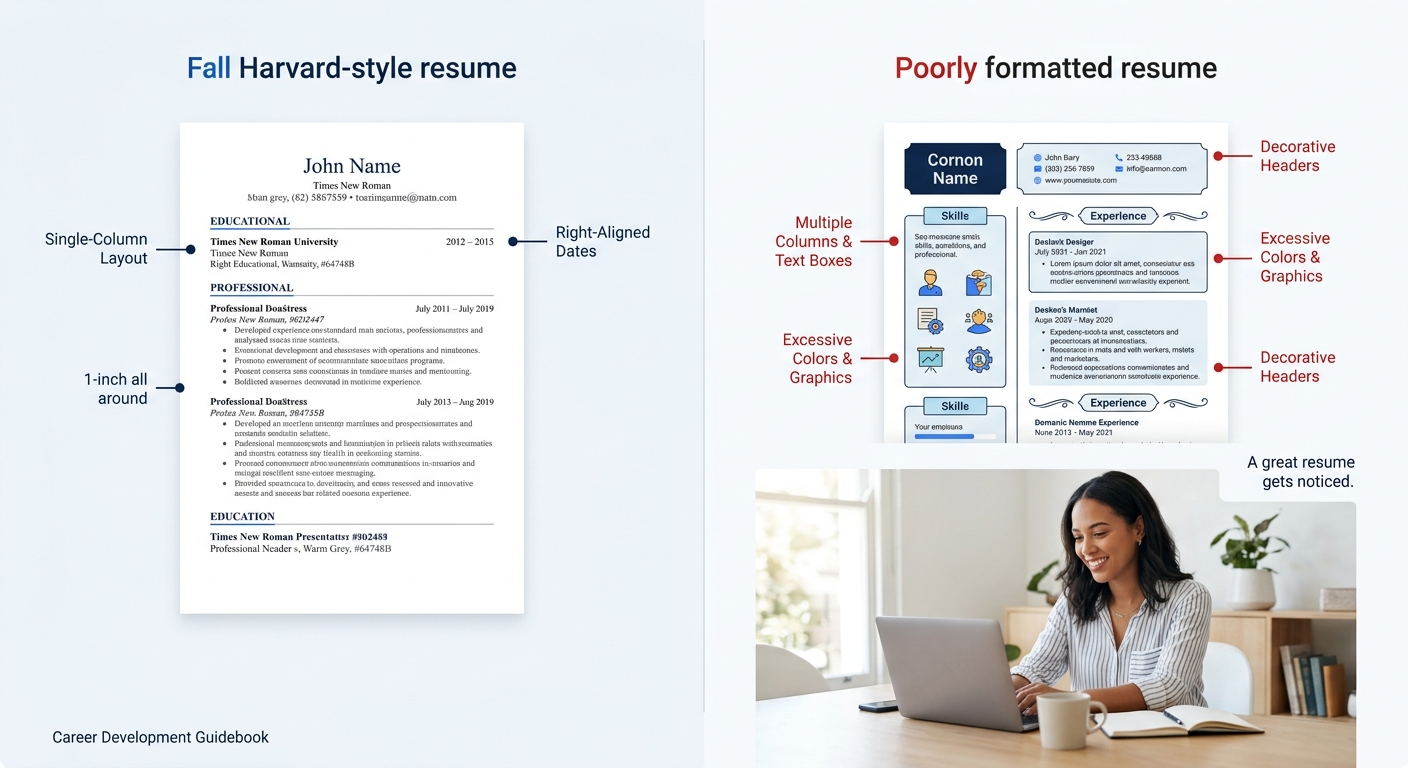
The Harvard resume template arrives with correct formatting, but editing often introduces small problems that compound into ATS failures. Run through this checklist before you submit:
- Font: Times New Roman or Garamond, 10–12pt. The template defaults to one of these. Don’t change it to a sans-serif font unless the industry expects it (tech and design sometimes prefer Calibri or Helvetica).
- Margins: 1 inch on all sides. If your content spills onto a second page, reduce margins to 0.75 inches before you start cutting content.
- Dates: Right-aligned using tab stops, not text boxes or tables. If your dates are jumping around, select the line and set a right-aligned tab at the 6.5-inch mark.
- Page length: One page for under 10–15 years of experience. Two pages only for senior professionals.
- File format: Submit as .docx unless the application specifically asks for PDF. Harvard’s own guide notes that when converting to PDF, formatting often shifts, check any PDF conversion carefully before sending.
And one thing most people forget: your resume and cover letter should use the same font type and size. If you’re building a cover letter to accompany this resume, using a matching template keeps everything visually consistent.
When Things Go Wrong
Your resume runs onto a second page by 2–3 lines. The fix here is not to shrink the font below 10pt, because that creates readability problems. Instead, tighten your bullet points. Cut any bullet that describes a duty rather than an achievement. Then reduce margins to 0.75 inches. If it still overflows, remove the Interests line or trim your oldest position to a single bullet.
You paste content from another document and the formatting breaks. Word carries hidden formatting from the source. Always paste using “Paste Special → Unformatted Text” (Ctrl+Shift+V on most systems), then reapply the template’s font and spacing manually. This takes 30 seconds and prevents hours of wrestling with rogue fonts and line spacing.
A company’s application portal garbles your resume after upload. Preview your upload if the portal allows it. If the text appears scrambled, the likely culprit is text boxes, tables, or headers/footers that the ATS can’t parse. The Harvard template avoids all three by design, but if you’ve modified the layout, strip out any element that isn’t plain body text with tab stops.
Where to Go From Here
You now have a finished, ATS-compatible resume built on the same template that Harvard’s career services office distributes to its own students. Save a master copy of this file with all your experience included: positions, volunteer work, research, projects, everything. When you apply to a new job, duplicate the master and delete the entries that aren’t relevant to that specific role.
Your next move depends on where you are in the search. If you’re putting together full application materials, building a cover letter with matching formatting reinforces the kind of professional consistency that hiring managers notice. If you’re working on your online presence in parallel, a guide on searching and applying through LinkedIn pairs well with a polished resume document.
The Harvard resume template doesn’t win points for visual flair. It wins because it strips away everything that could go wrong between your computer and a recruiter’s screen. The format is intentionally invisible, which means your actual experience and achievements carry the entire weight. That’s exactly where you want the attention to land.