

 4.9
4.9 4.5
4.5LinkedIn profiles that reach All-Star completion appear in 40x more recruiter searches than incomplete ones, and profiles with professional photos pull 21x more views and 36x more messages. This guide walks you through building a profile that hits both benchmarks in about 90 minutes, with a verification check after each step.
TL;DR: Complete seven profile sections in order, photo, headline, About, experience, skills, visibility settings, and job alerts, verifying each before moving on. The full process takes under two hours and positions your profile in the top tier of LinkedIn’s recruiter search algorithm.
Before You Start
You need four things ready before you touch your profile:
- A LinkedIn account. Free works. Premium unlocks AI headline suggestions and extra InMail, but every step below works without it.
- Your current resume. You’ll pull specific numbers, job titles, and date ranges from it. If yours needs an update first, the best resume writing services can get it polished in a few days.
- A professional headshot. This doesn’t mean studio-grade. A well-lit photo against a clean background, shot from the shoulders up, where you’re dressed as you would for a client meeting. Phone cameras work fine. Selfies with sunglasses don’t.
- 60–90 uninterrupted minutes. You can split this across two sessions if needed, but momentum helps.
One note on privacy: you’ll get the option to broadcast every edit as a profile update to your network. Turn that off before you begin. Go to Settings > Visibility > Share profile updates, and toggle it to No. You don’t want your current boss seeing 14 notifications as you overhaul your headline and summary.
Step 1: Upload Your Photo and Banner Image
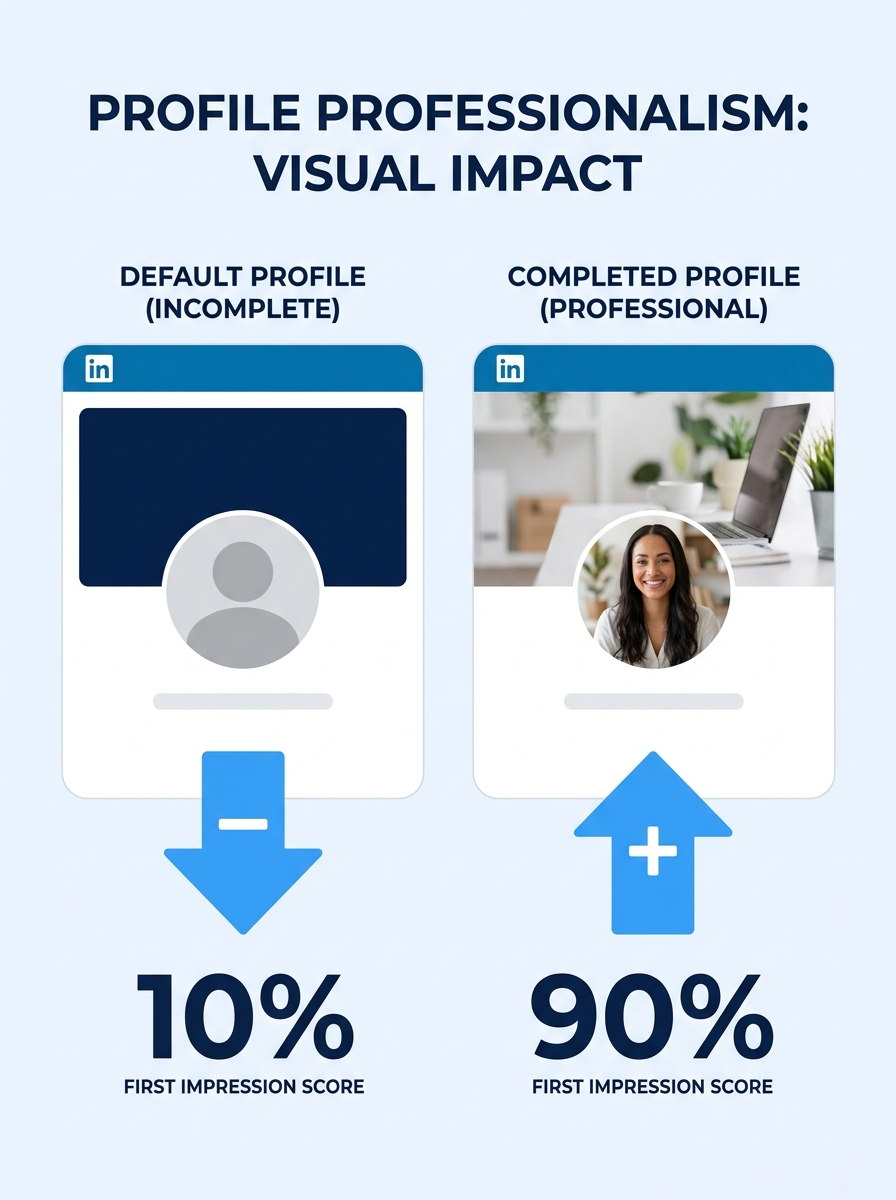
LinkedIn’s own data shows that profiles with professional photos receive 21x more profile views and 36x more messages than those without one. The banner image, that wide rectangle behind your headshot, is free visual real estate that most job seekers leave as the default blue gradient.
Action: Upload your headshot. Then create or find a banner image sized 1584 × 396 pixels. Good options include a simple graphic with your field of expertise written on it, a photo of you presenting at a conference, or a clean image related to your industry. Canva’s free tier has LinkedIn banner templates that work well enough.
Verification: View your profile in a private/incognito browser window. If the photo loads clearly at thumbnail size and the banner isn’t pixelated or awkwardly cropped, you’re set.
Step 2: Rewrite Your Headline Using All 220 Characters
Your headline is the single most heavily weighted field in LinkedIn’s search index, recruiter-side searches weigh it at roughly 5x compared to other profile sections. The platform gives you up to 220 characters, but most people stop at their job title and company name. That leaves 150+ characters of searchable space sitting empty.
Action: Open your profile, click the pencil icon next to your name, and rewrite your headline. Structure it this way: Current Role | Core Expertise | What You Deliver. For example: “Senior Data Engineer | Python, Spark, dbt | Building pipelines that cut processing time and reduce cloud spend.” Pack in the keywords a recruiter in your field would actually type into a search bar.
Brent Morrell, the director of talent acquisition at Badger Infrastructure Solutions, uses a headline aligned with his personal mission rather than defaulting to his job title alone, according to LinkedIn’s own blog on headline strategy. His approach differentiates him from thousands of other directors with identical titles. For job seekers on LinkedIn, that differentiation matters even more, you’re competing against every other person with your same job title in your metro area.
Tip: If you have LinkedIn Premium, tap the AI writing assistant for headline suggestions. It generates options based on your existing profile data. Treat these as starting points to edit, not finished copy.
Verification: Search your own name on LinkedIn from a logged-out browser. Your headline should appear directly under your name in the search result. If it’s truncated awkwardly, tighten the front half, the first 60 characters are what most people see on mobile.
Step 3: Write Your About Section Like a Landing Page
The About section gives you 2,600 characters to work with. Recruiters scan it in under 10 seconds, so the first two lines need to carry real weight. A strong LinkedIn summary tells your professional narrative in a way that’s clear, personal, and direct, going beyond a title to connect with recruiters on a human level, as Jobscan’s 2026 guide to LinkedIn summaries describes it.
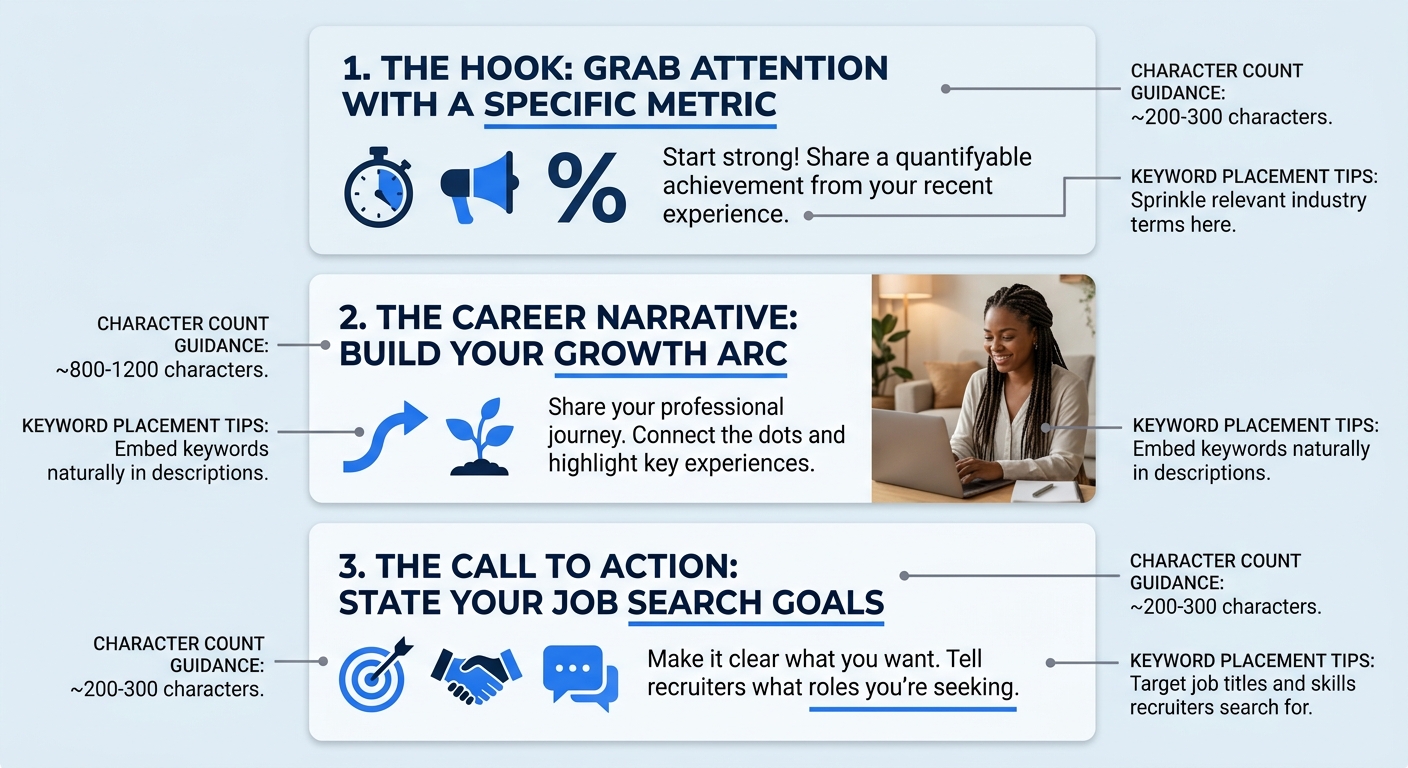
Action: Write three short paragraphs:
- Hook (2-3 sentences): State what you do, who you do it for, and one specific result. “I design supply chain systems for mid-market manufacturers. My last implementation cut fulfillment errors by 34% across 12 distribution centers.”
- Career narrative (3-4 sentences): Walk through the highlights of your career arc. Focus on transitions and growth, not a chronological recitation of every role you’ve held.
- What you’re looking for (1-2 sentences): If you’re actively searching, say so plainly. “I’m exploring senior operations roles in the Pacific Northwest” is direct without sounding desperate.
Weave in keywords naturally throughout. If recruiters in your field search for “ERP implementation” or “demand planning,” those phrases should appear in your About section. LinkedIn’s AI-powered People Search evaluates profiles on semantic relevance, so keyword stuffing won’t help, but complete absence of your field’s core terminology will definitely hurt your discoverability.
Verification: Copy your About section into a word counter. It should be at least 300 words and no more than 2,600 characters. Read the first two lines in isolation, if they don’t tell a stranger what you do and why they should keep reading, rewrite them.
Step 4: Rebuild Your Experience Section Around Impact
The experience section is where most job seekers on LinkedIn make the same mistake they make on resumes: listing duties instead of results. “Managed a team of 8” tells a recruiter nothing about whether you managed them well. “Led an 8-person engineering team that shipped 3 product releases ahead of schedule, reducing time-to-market by 22%” tells a story with a verifiable outcome.
Action: For each of your three most recent and relevant roles, write 3-5 bullet points. Each bullet follows this formula: action verb + what you did + measurable result. Use numbers wherever possible, percentages, dollar figures, team sizes, timelines.
For older or unrelated roles, keep the entries brief. As BridgeView IT’s 2026 optimization guide recommends, you should prioritize the roles that align with the job you want, and keep everything else to one or two lines. A hiring manager evaluating your profile for a product management role doesn’t need four bullet points about the summer you spent as a barista.
If you’ve already polished your resume with measurable achievements, you can repurpose much of that language here. And if your resume bullets still read like job descriptions, the top resume builders can help you rework them before porting anything to LinkedIn.
“Increased conversion by 28%” beats “responsible for improving conversion rates” every time, on your resume and on LinkedIn.
Verification: Read each bullet point and ask: “Does this contain a number?” If more than half of your bullets lack a specific metric, go back and add them. When you genuinely can’t quantify something, describe the scope instead, team size, budget managed, number of users affected.
Step 5: Pin Your Top Skills and Seek Endorsements
LinkedIn lets you list up to 50 skills but allows you to pin 3 at the top of your skills section. Those pinned skills carry disproportionate weight in recruiter search filters. Verified skill badges, earned through LinkedIn’s skill assessment quizzes, boost your ranking further.
Action: Go to your Skills section. Remove any skills that don’t match the roles you’re targeting. Add skills that appear frequently in job postings you’re interested in. Pin the three that best represent your candidacy. Then take LinkedIn’s skill assessment quizzes for your top 3, passing earns you a visible badge on your profile.
After pinning, send a short message to 5-10 former colleagues asking them to endorse your top 3 skills. Keep the request specific: “Would you mind endorsing me for project management on LinkedIn? We worked together on the Q3 migration and your endorsement would carry real weight.”
Verification: Check that your top 3 pinned skills match the keywords you used in your headline and About section. If your headline says “Data Analytics” but your pinned skills are “Microsoft Excel, Team Leadership, Communication,” there’s a disconnect recruiters will notice immediately.
Step 6: Configure “Open to Work” and Your Privacy Settings
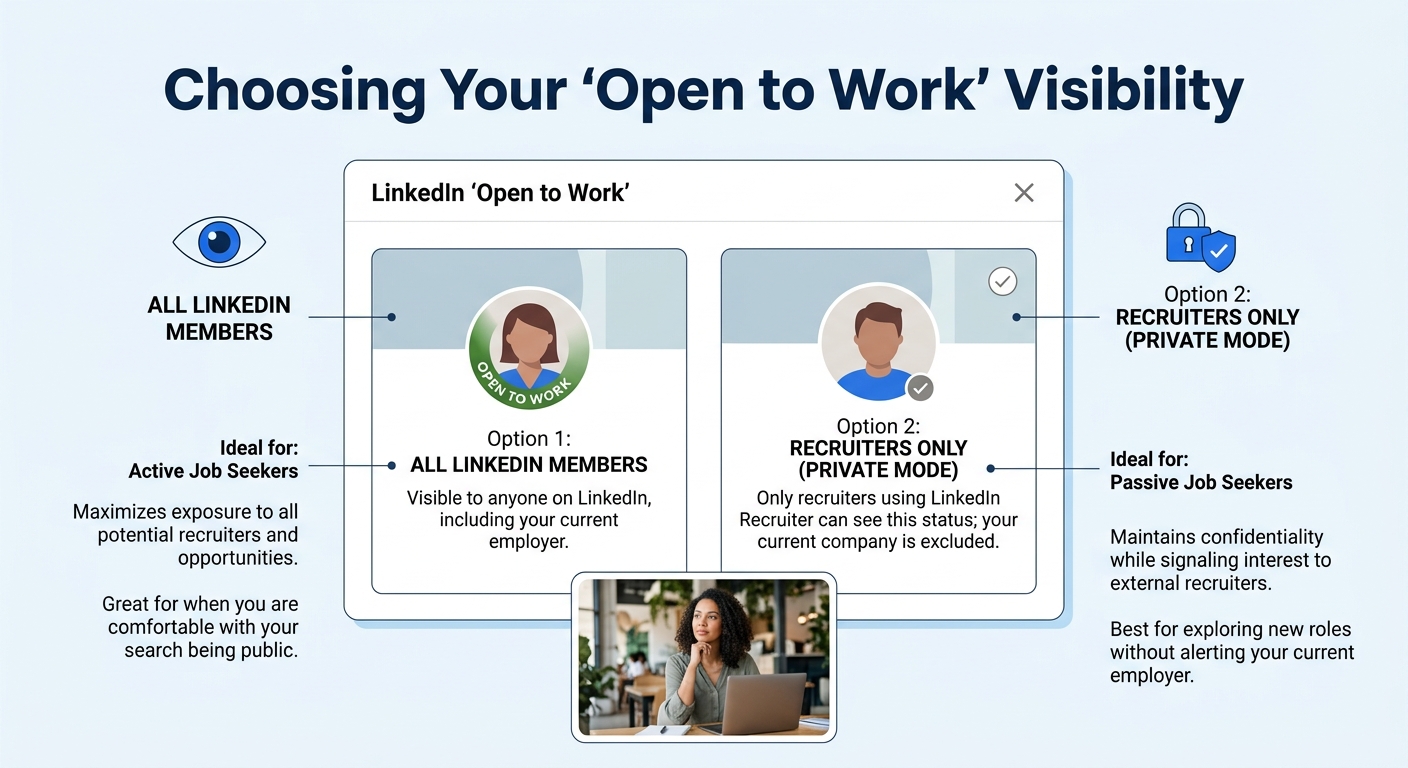
LinkedIn gives you two versions of the “Open to Work” signal. The public version puts a green banner on your photo visible to everyone, including your current employer. The private version signals only to recruiters using LinkedIn Recruiter. For most job seekers who are still employed, private is the right choice.
Action: Go to your profile, click the “Open to” button, select “Finding a new job,” and fill in your target job titles, locations, and work types (remote, hybrid, on-site). Set visibility to “Recruiters only.”
Then check two more settings. Under Settings > Visibility, make sure “Profile visibility off LinkedIn” is turned on. This lets search engines index your profile, which means recruiters who Google your specialty can find you outside of LinkedIn. More than 70% of recruiters search for candidates on LinkedIn, but plenty also use Google, and your profile often ranks on page one for your own name.
Verification: Google your full name in quotes plus your job title. Your LinkedIn profile should appear within the first few results. If it doesn’t, revisit your privacy settings and give Google a few days to re-index your page.
Step 7: Set Job Alerts and Start Showing Up
A finished profile is half the equation. LinkedIn’s algorithm treats activity as a primary visibility multiplier. Posting once per week and leaving 5-10 substantive comments on industry content each day signals to the algorithm that your profile is active, which pushes you higher in recruiter search results.
Action: Set up 3-5 job alerts for your target roles. Go to the Jobs tab, run a search with your preferred title, location, and filters, then click the bell icon to create an alert. You’ll get email notifications as new matching positions are posted.
Then commit to a weekly posting rhythm. You don’t need to write 800-word thought pieces. A single paragraph sharing an observation from your field, a quick reaction to an industry report, or a lesson from a past project counts. The goal is consistency, not virality.
And don’t underestimate commenting. A thoughtful, specific comment on a post by someone at your target company puts your name, and your polished headline, in front of their network. That’s passive networking at scale, and it works especially well when you pair it with a profile ready for click-throughs.
If your job search extends beyond LinkedIn, the strategies here, quantified achievements, keyword alignment, clear positioning, apply to your cover letters and application materials too. Given that traditional job search methods have been losing ground as unemployment duration stretches, a multi-channel approach makes a real difference.
Verification: One week after completing all seven steps, check your profile analytics under the “Analytics” section on your profile page. You should see an uptick in profile views and search appearances. If search appearances haven’t moved, revisit your headline and skills, those are the two fields that drive search visibility most directly.
When Things Go Wrong
Problem 1: “My profile views went up but I’m getting irrelevant recruiter messages.” Your keywords are too broad. If your headline says “Marketing Professional,” recruiters filling everything from entry-level social media roles to VP positions will find you. Narrow it: “B2B SaaS Content Strategist | SEO, Demand Gen, Product Marketing” attracts the right people and repels the wrong ones.
Problem 2: “LinkedIn’s skill assessment quiz won’t give me a badge.” You need to score in the top 30% to earn the badge. If you don’t pass on the first try, LinkedIn lets you retake it after a waiting period. Use that time to review the specific topics covered, they’re listed before you start each quiz.
Problem 3: “My current employer saw my Open to Work status.” If you selected “All LinkedIn members” instead of “Recruiters only,” switch it immediately. LinkedIn does attempt to hide your Open to Work signal from employees at your current company even in the public setting, but the filtering has known gaps. The private setting is the safer default, especially given that hiring managers are increasingly scrutinizing digital signals from candidates.
Warning: Don’t use the public green “Open to Work” banner if you’re currently employed and haven’t told your manager. LinkedIn’s privacy filter for your current company’s employees has documented gaps.
Where to Go From Here
Your profile is built, your settings are configured, and your first week of engagement has started. The next phase is strategic networking: connecting with people at your target companies, engaging with their content, and building the kind of visibility that turns a cold application into a warm introduction. LinkedIn’s recruiter-side tools surface profiles that show both completeness and activity, so the work you’ve done here pays compounding returns over the coming weeks.
Every email you send, every application you submit, every time a hiring manager Googles your name, your LinkedIn profile is the landing page they’ll reach. The version you’ve built today gives them what they’re actually looking for: clear positioning, measurable results, and evidence that you’re actively engaged in your field. That combination is what separates job seekers whose LinkedIn profiles generate inbound interest from those whose profiles sit dormant, collecting dust alongside a default blue banner.